
Start and sign a quoteIn Get Paid › Quotes
In Get Paid › Quotes
Start from a starter
Every quote starts from a starter or blank, with the ones for your trade first. A starter never invents a price: an empty line reads “Price needed” until you fill it.
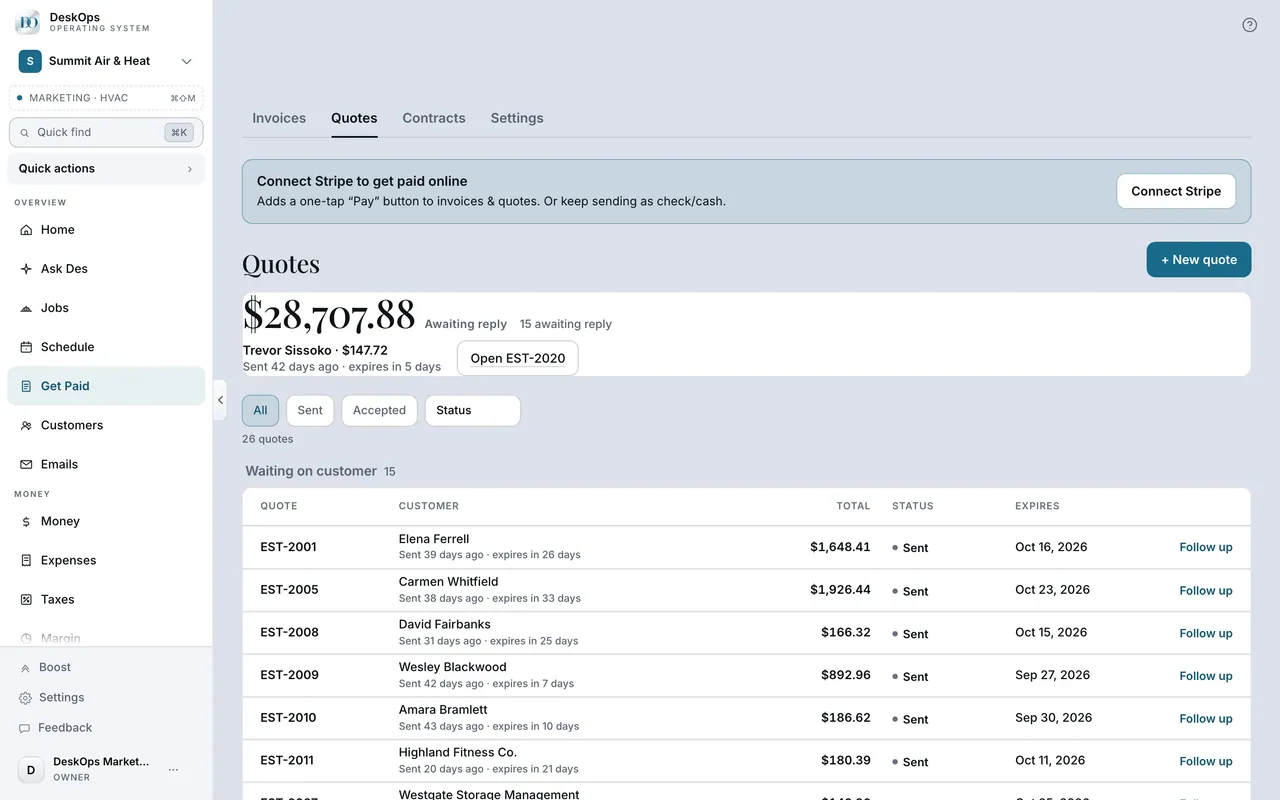 Example screen
Start here · On a computer
- 1Get Paid
- 2Quotes
- 3Create quote
Choose the customer first, then the format on Items. From a saved template: Get Paid, then the Settings tab, then Templates, then Edit.
In Get Paid
Sign your quotes once
Save your signature once and every quote can go out signed. The quote is signed only when you slide Sign & send, and older quotes keep the signature they had.
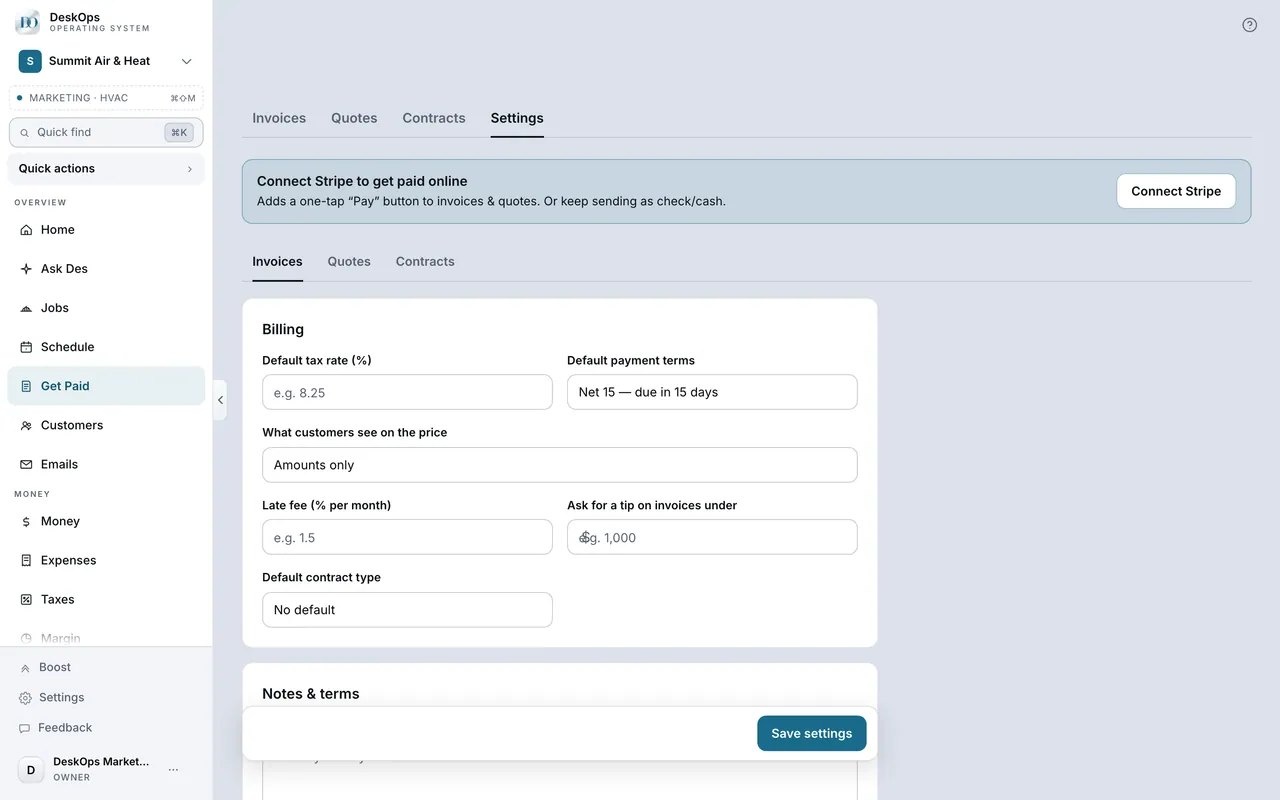 Example screen
Start here · On a computer
- 1Get Paid
- 2Open the Settings tab
- 3Quotes
- 4More options
- 5Your signature
or the first time you Send a quote.
On your phone: Get Paid → the Settings tab → Quote settings → More options → Your signature — or the first time you Send a quote.
In Get Paid › Quotes
Answer the job details
Job details decide which cancellation rules apply: where you made the deal, the job site’s state, home or business. Leave one blank and DeskOps takes the careful reading.
Example screenStart here · On a computer
- 1Get Paid
- 2Quotes
- 3Create quote
- 4Items
- 5Job details, below More
tax, notes, terms.
On your phone: Get Paid → Quotes → Create quote → Items → Job details.
Want to look at your own?