
Send an invoiceIn Get Paid › Invoices
In Get Paid › Invoices
Choose the customer
Choose an existing customer, or type a new name to add one. Their email and phone can be filled in here or later.
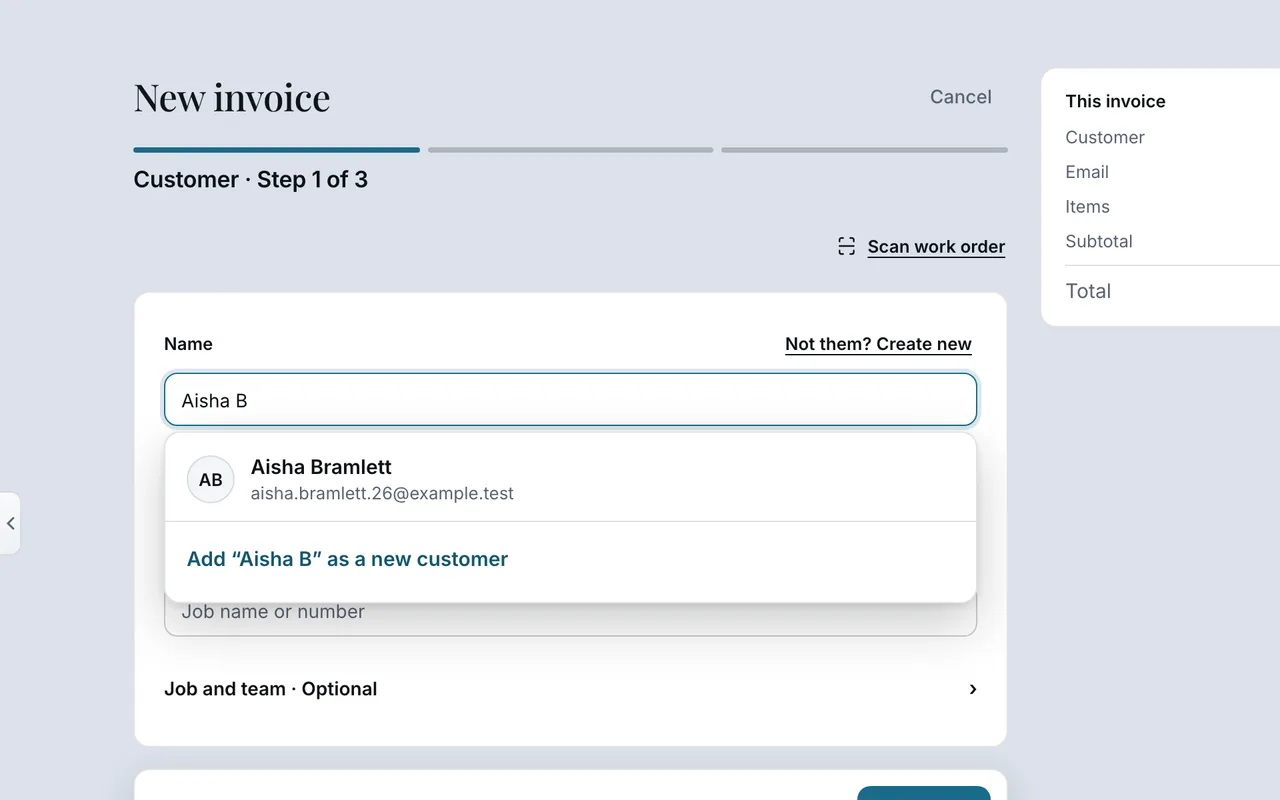 Example screen
Start here · On a computer
- 1Get Paid
- 2Invoices tab
- 3+ New invoice
On your phone: Get Paid → New invoice.
Worth knowingYou can type the description and amount yourself on the next step; saved prices can wait.
In Get Paid › Invoices
Add the work and price
Use a saved price, or type the description and amount yourself. Add as many lines as the job needs; the total updates as you go.
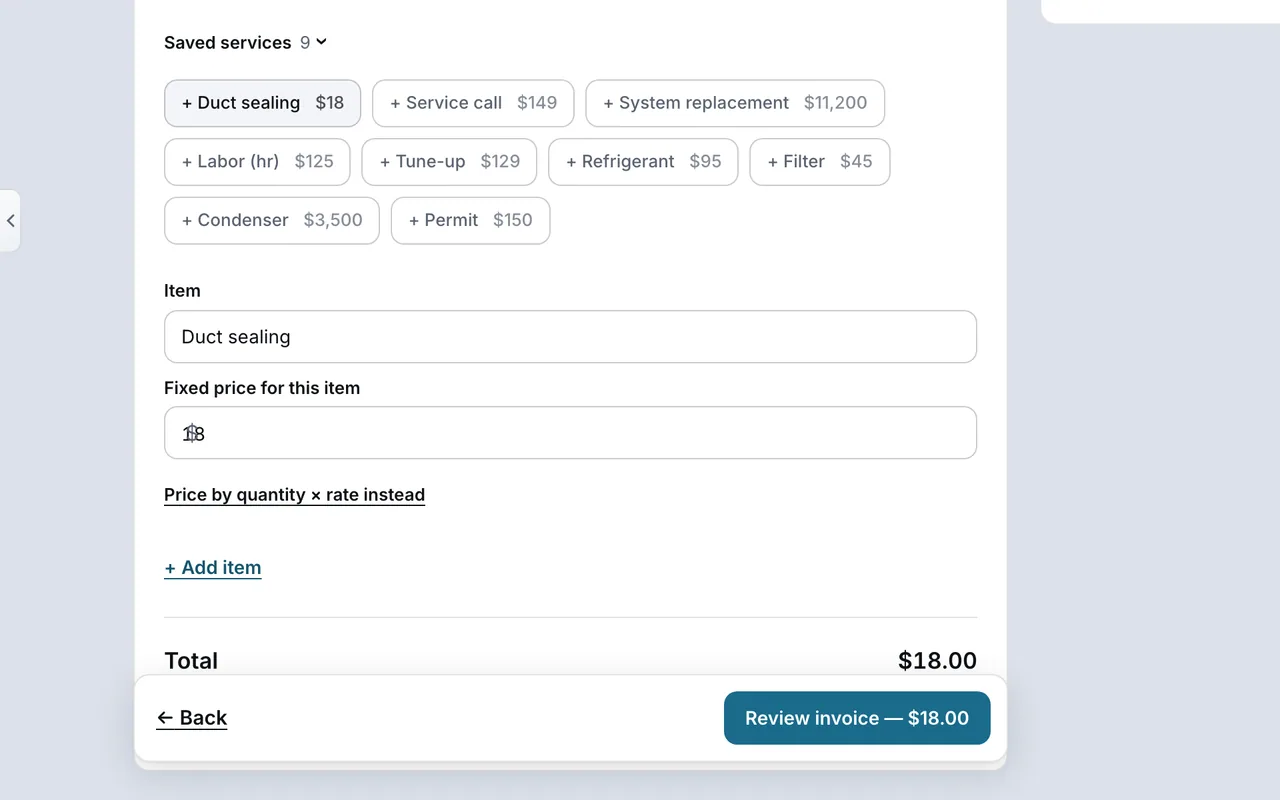 Example screen
How you got here
Get PaidInvoices tab+ New invoice
In Get Paid › Invoices
Check it before sending
Review the customer, the work and the total. Create & email sends it; with no email address on file the button reads Create & share link. Save as draft keeps it unsent.
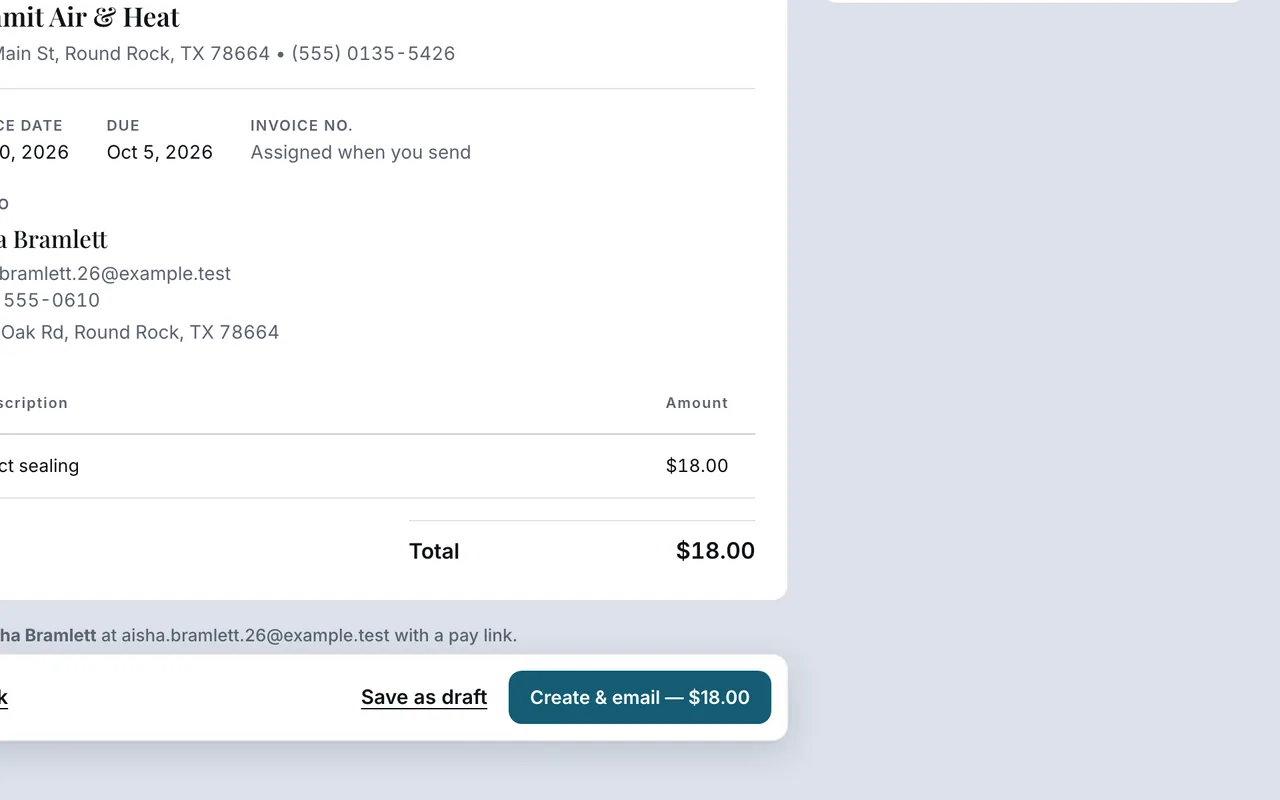 Example screen
How you got here
Get PaidInvoices tab+ New invoice
Customers can pay by card when Stripe is connected.
Ready to do this with your own business?
Check the customer, the work and the total before sending.