
Turn on two-step sign-inIn Settings › Security
In Settings › Security
Scan, type one code, save the codes
Security → Two-step sign-in. Scan the QR code with an authenticator app, type the code it shows, save your ten recovery codes, then press Turn on.
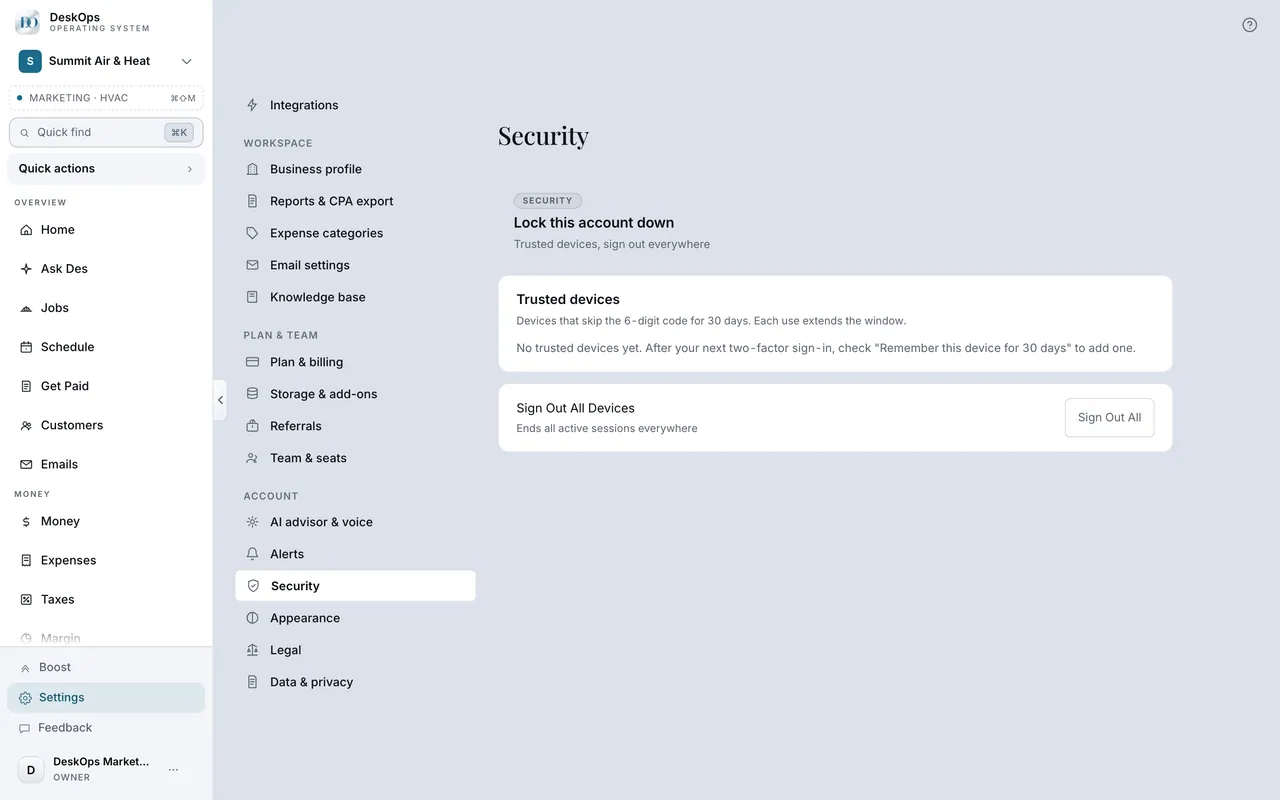 Example screen
Start here · On a computer
- 1Settings
- 2Security
- 3Two-step sign-in
- 4Set up
A team member who has no Settings: the ⋯ by your name, then Two-step sign-in.
On your phone: Settings → Security → Two-step sign-in. A team member: Menu → Two-step sign-in.
In the code screen
If your phone is lost
A recovery code gets you in once and keeps two-step on. With no codes, email recovery turns it off after 72 hours, and you are told the whole time.
Start here · On a computer
- 1Open the code screen
- 2Use a recovery code
or Lost your phone?
In Settings › Security
Nobody can quietly switch it off
Support and DeskOps admins have no switch for it. Only your code, a recovery code or the announced 72-hour email recovery turn it off.
Example screenStart here · On a computer
- 1Settings
- 2Security
- 3Two-step sign-in
Ready to do this with your own business?
Save the ten recovery codes somewhere that is not your phone before you press Turn on.