
Log an expenseIn Quick actions at the top of the sidebar
In Quick actions at the top of the sidebar
Scan the receipt
Log an expense → Scan a receipt reads the supplier, the total, the date and a category from the photo, and keeps the image with the expense.
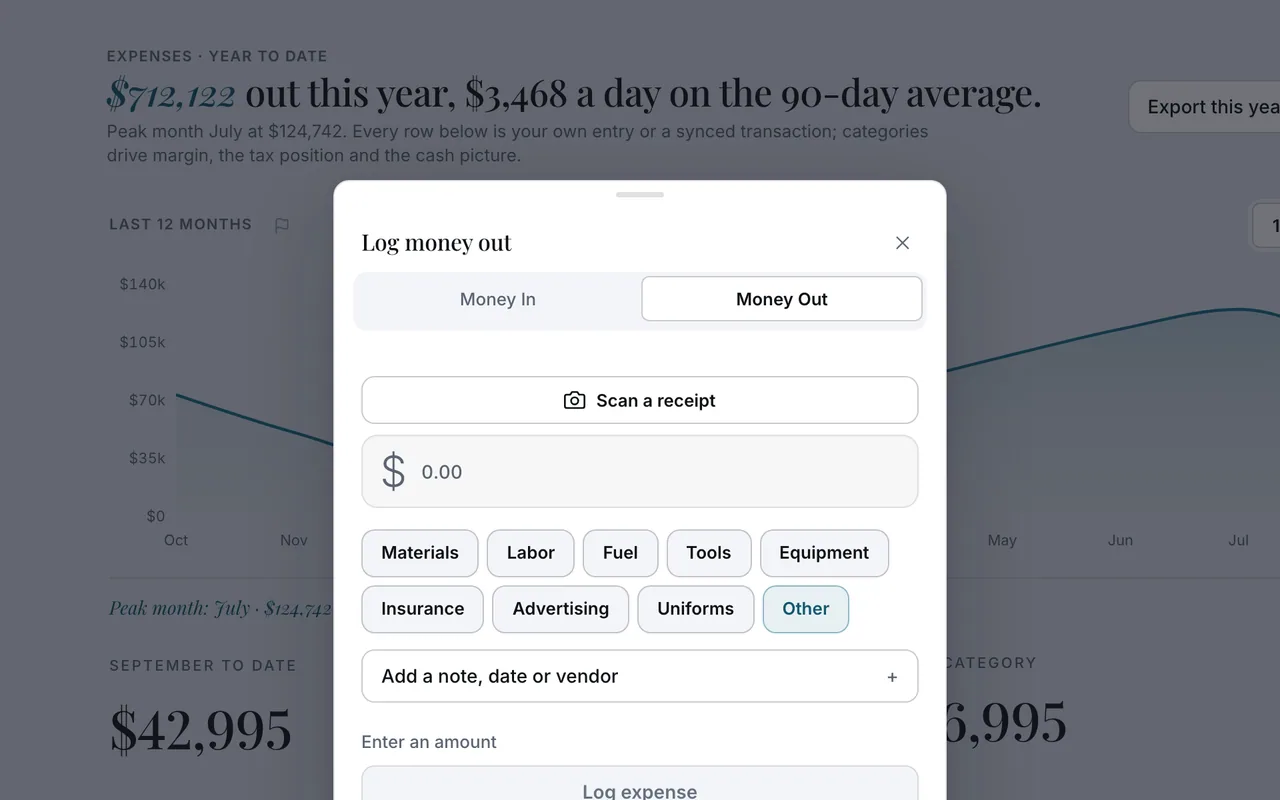 Example screen
Start here · On a computer
- 1Quick actions at the top of the sidebar
- 2Log an expense
- 3Scan a receipt
On your phone: Home → + New → Log an expense → Scan a receipt.
In Your money
Type it, or tell Des
Expenses under Money takes a typed expense. Or tell Des “spent $240 on gas” — it logs the expense and shows an undo chip for a few minutes.
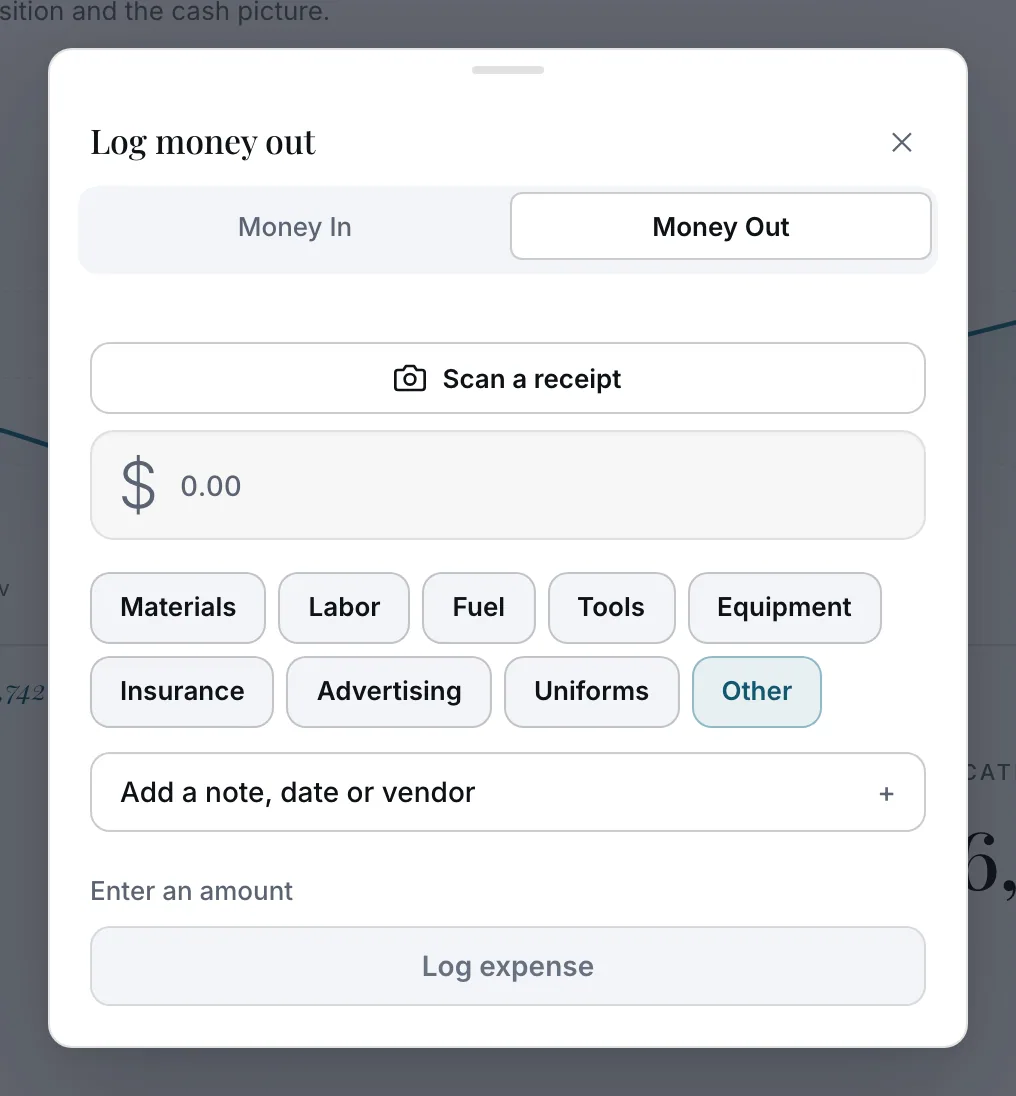 Example screen
Where it is · On a computer
Expenses in the sidebar under Money.
On your phone: Expenses in the Menu tab.
In Quick actions at the top of the sidebar
Where a truck payment goes
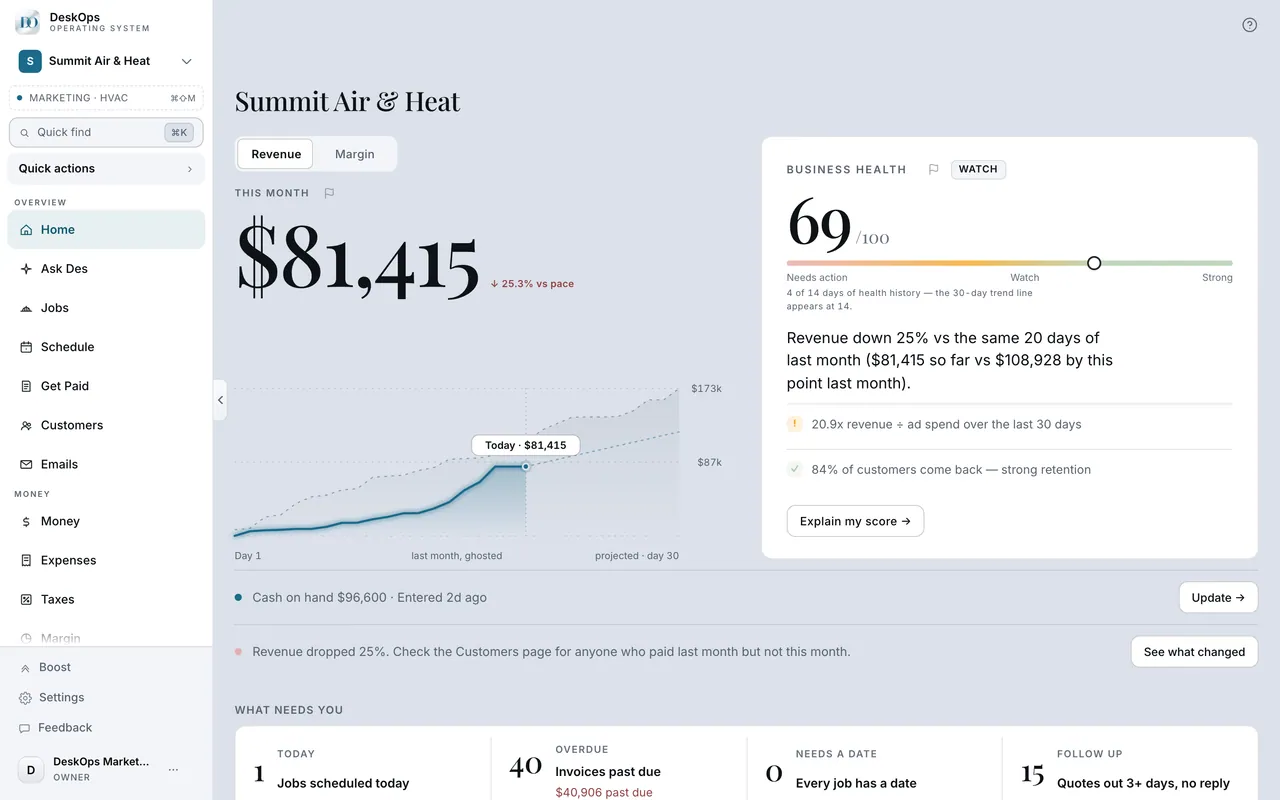
The monthly payment is an expense under Vehicle. The truck itself goes on the Depreciation worksheet under Taxes, once, for your accountant to work from.
 Example screen
Route 1 · On a computer
- 1Quick actions at the top of the sidebar
- 2Log an expense, category Vehicle (or Equipment)
Route 2 · On a computer
- 1Taxes
- 2Depreciation for the truck itself
On your phone: Home → + New → Log an expense; Taxes → Depreciation.
Ready to do this with your own business?
Scan the receipt at the counter; the image stays with the expense as proof.