
Win work from your websiteIn Settings
In Settings
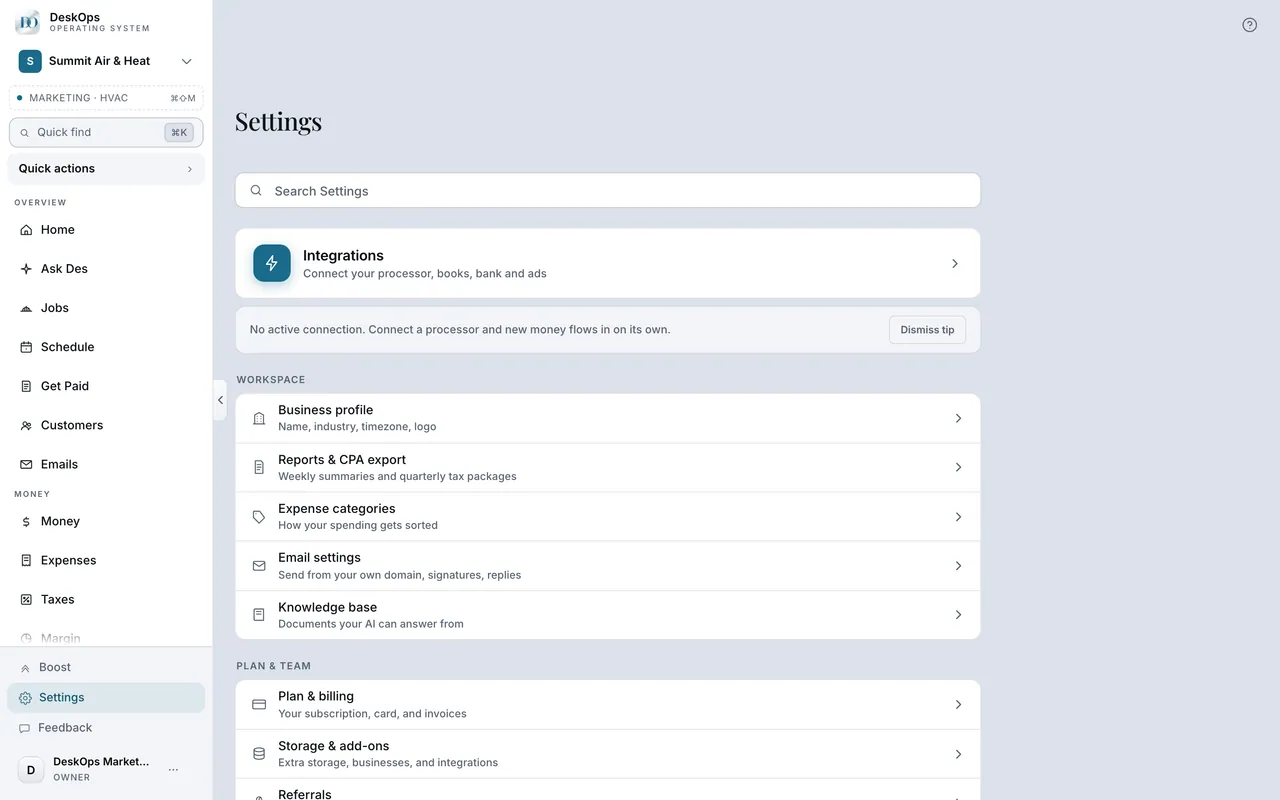
Put the button on your website
Choose Book online, Request a quote or both, pick a style, then copy the link, the button code or the form for your website.
 Example screen
Start here · On a computer
- 1Settings
- 2Get booked from your website
In Settings
Follow the steps for your website builder
There are short steps for Wix, Squarespace, WordPress, GoDaddy, Google Sites, Facebook and more. Where pasting code needs a paid plan, the steps use your link instead.
Example screenStart here · On a computer
- 1Settings
- 2Get booked from your website
- 3Step by step for your website
In Settings
Hand it to your web person, or print it
Send the instructions to whoever runs your website, reviewed before they go, or download a QR code for your truck or a yard sign.
Example screenStart here · On a computer
- 1Settings
- 2Get booked from your website
- 3Send these instructions to your web person
or QR code.
On your phone: Settings → Get booked from your website → the same two steps.
In Requests in the sidebar
See what a request holds
A request carries what they need, their photos, the address and when they would like it. Nothing is booked and no price is promised until you send one.
Start here · On a computer
- 1Requests in the sidebar
the form itself is set up in Settings, then Get booked from your website.
On your phone: Menu → Requests; the form is set up in Settings → Get booked from your website.
In Requests
Quote it, book it, or say no
Make a quote fills in the customer, the address and their services for you to price. Book a visit puts it on the board; Decline sends a reply you review first.
Start here · On a computer
- 1Requests
- 2Open the request
Worth knowingWhen an existing customer is suggested, check the email or phone first — DeskOps never matches on a name.
In Customers
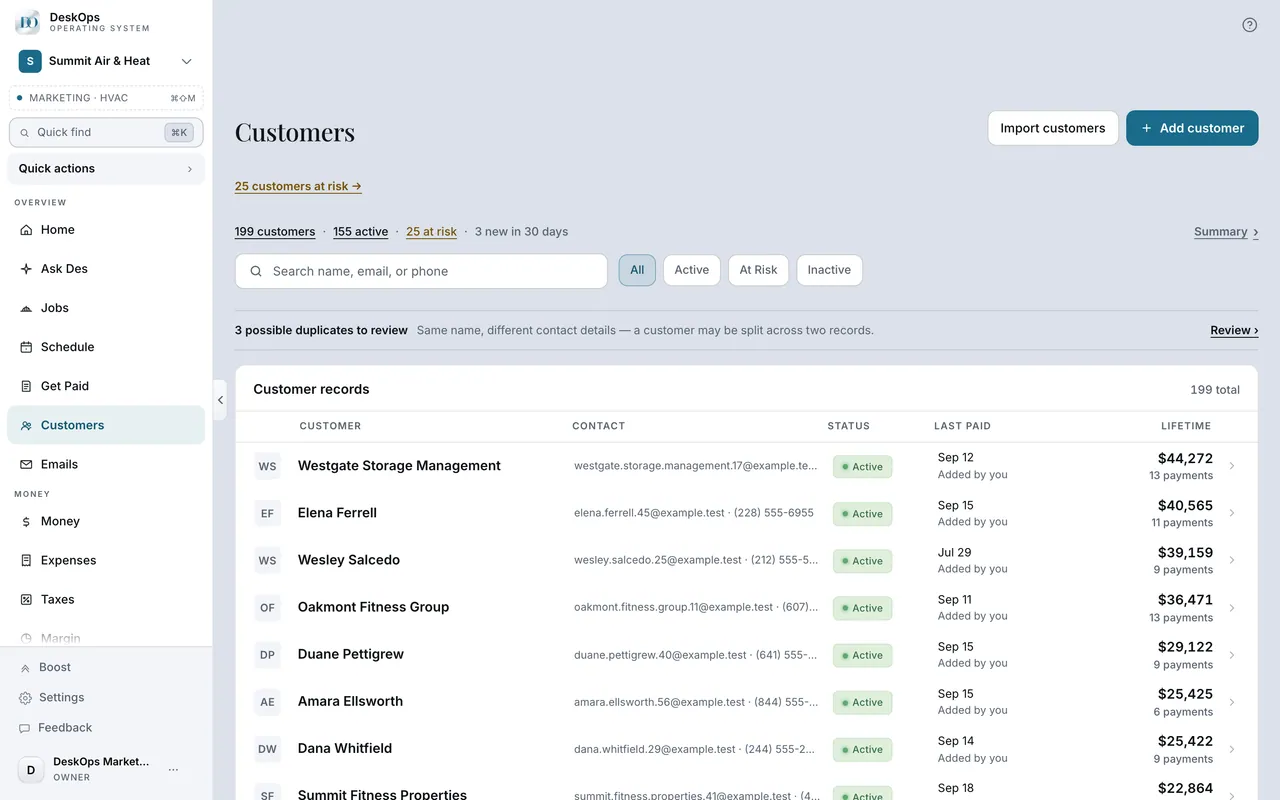
Give happy customers a link to share
Each customer has their own share link. New customers who come through it are credited to them, and you write down the thanks you gave.
 Example screen
Start here · On a computer
- 1Customers
- 2Open the customer
- 3Referrals
Ready to do this with your own business?
Put the button on your site first; requests arrive on their own from there.