
Before you collect a paymentIn Get Paid
In Get Paid
When a payment is already in progress
An invoice takes one payment at a time, so it is never collected twice. If a card or bank payment is still confirming, wait for it, then collect what is still owed.
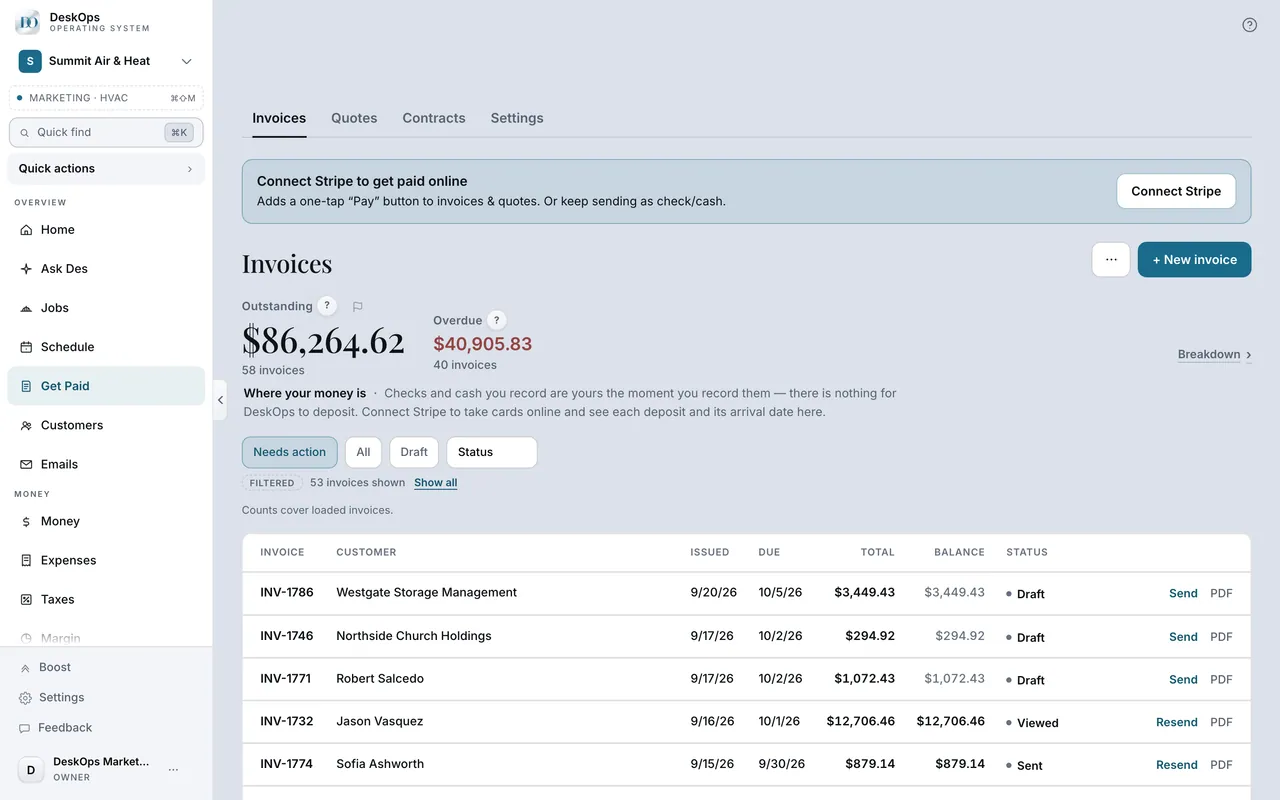 Example screen
Start here · On a computer
- 1Get Paid
- 2Open the invoice
- 3Mark paid
When the customer has a card on file, “Charge saved card” sits beside it.
On your phone: Get Paid → the invoice → Mark paid.
In Get Paid
When a customer pays too much
The extra is theirs, so DeskOps holds it as credit and sends nothing back on its own. On the invoice, keep it, refund it the way they paid, or record handing it back.
Example screenStart here · On a computer
- 1Get Paid
- 2Open the invoice
- 3Under the totals, Overpaid
Refund or keep it.
On your phone: Get Paid → the invoice → Overpaid → Refund or keep it.
In Get Paid
Apply credit to an invoice
Open an unpaid invoice for that customer and choose Apply $X credit. Confirm it to lower the balance; no new money is collected.
Example screenStart here · On a computer
- 1Get Paid
- 2Open an unpaid invoice for that customer
- 3Apply $X credit
On your phone: Get Paid → the invoice → Apply $X credit.
In Get Paid
Card fees come out of your payout
Your customer pays the invoice total however they pay; the card fee comes out of your payout. Build card costs into your prices, or turn on bank payments, which cost less.
Example screenStart here · On a computer
- 1Get Paid
- 2Open an invoice
the fee lines show what each card payment cost you. There is no surcharge setting.
On your phone: Get Paid → open an invoice, same fee lines.
In Get Paid › Invoices
Add a Pay button to an invoice already sent
An invoice sent before Stripe was connected has no Pay button. Add a Pay link resends the same invoice, same number and amount, now payable online; the customer still chooses.
Example screenStart here · On a computer
- 1Get Paid
- 2Invoices
- 3Open the invoice
- 4Payment Link
- 5Add a Pay link
On your phone: Get Paid → Invoices → open the invoice → Add a Pay link, in the actions under the total.
Want to look at your own?