
What your customers hear from DeskOpsIn Settings › Alerts
In Settings › Alerts
What goes out on its own
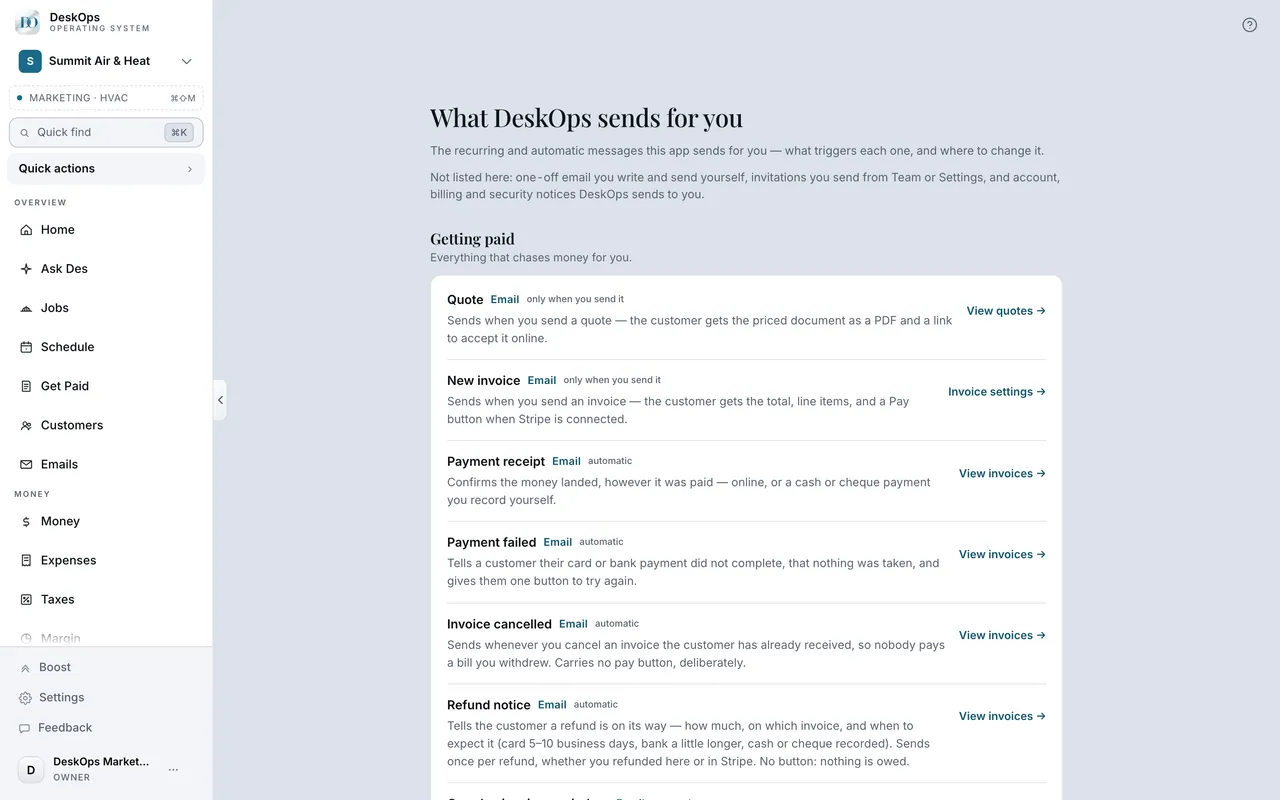
Receipts, invoice reminders, corrections and confirmations — each tied to something you did, and each with its own switch on the Communications screen.
 Example screen
Start here · On a computer
- 1Settings
- 2Alerts
- 3See everything we send your customers
one screen that names every automatic message, what triggers it, and the screen that changes it. The URL is /communications.
On your phone: Settings → Alerts → See what we send.
In Settings › Alerts
Nothing leaves without a cause you started
Campaigns go only when you start them, and Des shows a confirm popup before it emails anyone. The Communications screen lists every send.
Start here · On a computer
- 1Settings
- 2Alerts
- 3See everything we send your customers
which lists each one with its trigger.
On your phone: Settings → Alerts → See what we send.
In Customers
Ask for reviews, if you switch it on
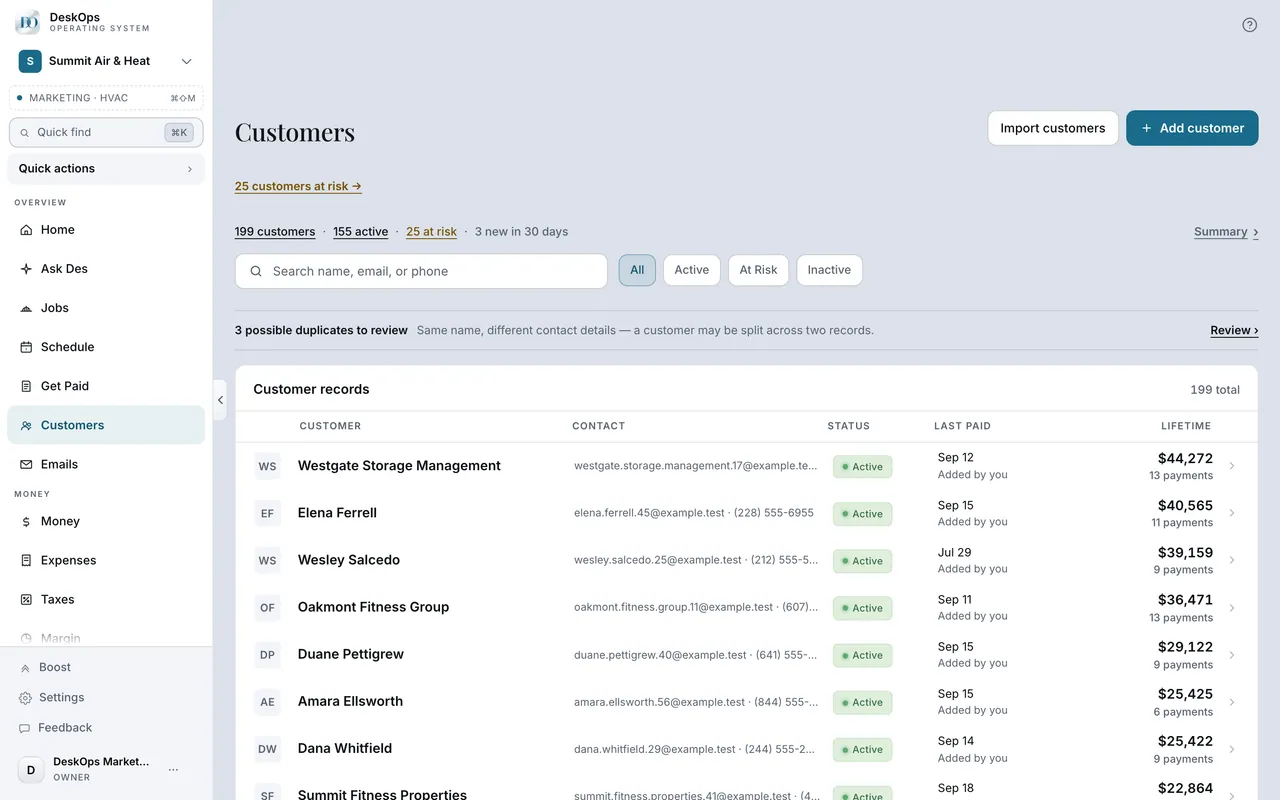
Only when you turn it on: one note about four hours after a job, never twice in ninety days, using the review link you saved once under Email settings.
 Example screen
Start here · On a computer
- 1Customers
- 2a customer
- 3Request review sends one now
Automatic asks: Schedule, then the Ask for reviews switch.
On your phone: Customers → the customer → Request review; Schedule for the switch.
In Settings › Alerts
Texting is a separate line
DeskOps emails on its own. Texting is TextDesk, a separate line you can connect; once it is connected, reminders can go by text instead.
Start here · On a computer
- 1Settings
- 2Alerts
- 3See everything we send your customers
- 4the Texting section at the bottom
On your phone: Settings → Alerts → See what we send.
Want to look at your own?
Read the Communications screen once; everything on it goes out under your business name.