
Staying signed inIn /login
In /login
When the code does not arrive
Check spam, then press Resend code. After the second resend the screen offers your password instead.
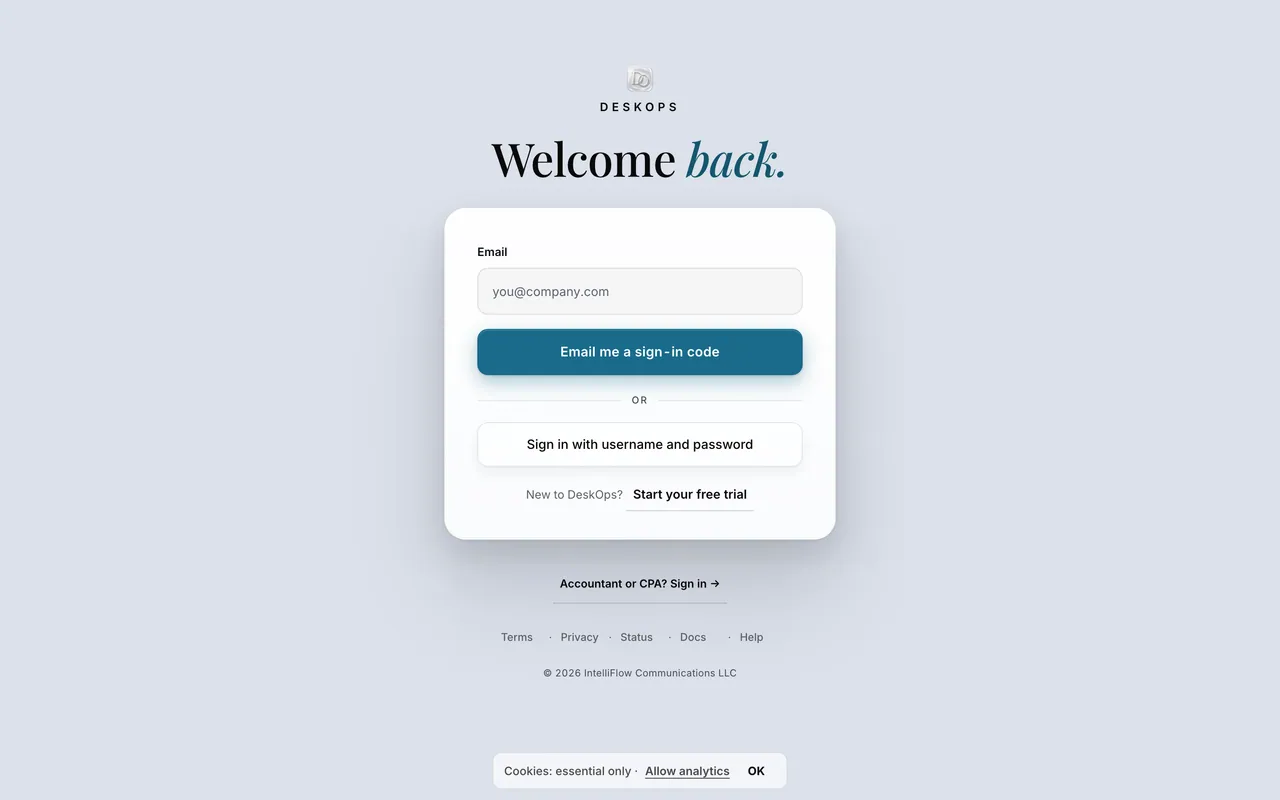 Example screen
Start here · On a computer
- 1/login
- 2Resend code
after the second resend the screen offers Sign in with a password instead.
On your phone: the same screen.
Worth knowingAdd the sender to your contacts the first time a code arrives.
In On your phone
Why it signed you out
After about twenty-five minutes without a tap, DeskOps asks if you are still there, then signs out. A half-finished form is the only thing a sign-out loses.
Where it is · On a computer
the Still here? notice appears after about twenty-five minutes without activity; click it to stay signed in.
On your phone: the same notice.
In Settings › Security
See which devices are signed in
Trusted devices under Security lists every device with a live session — worth a look when you replace a phone.
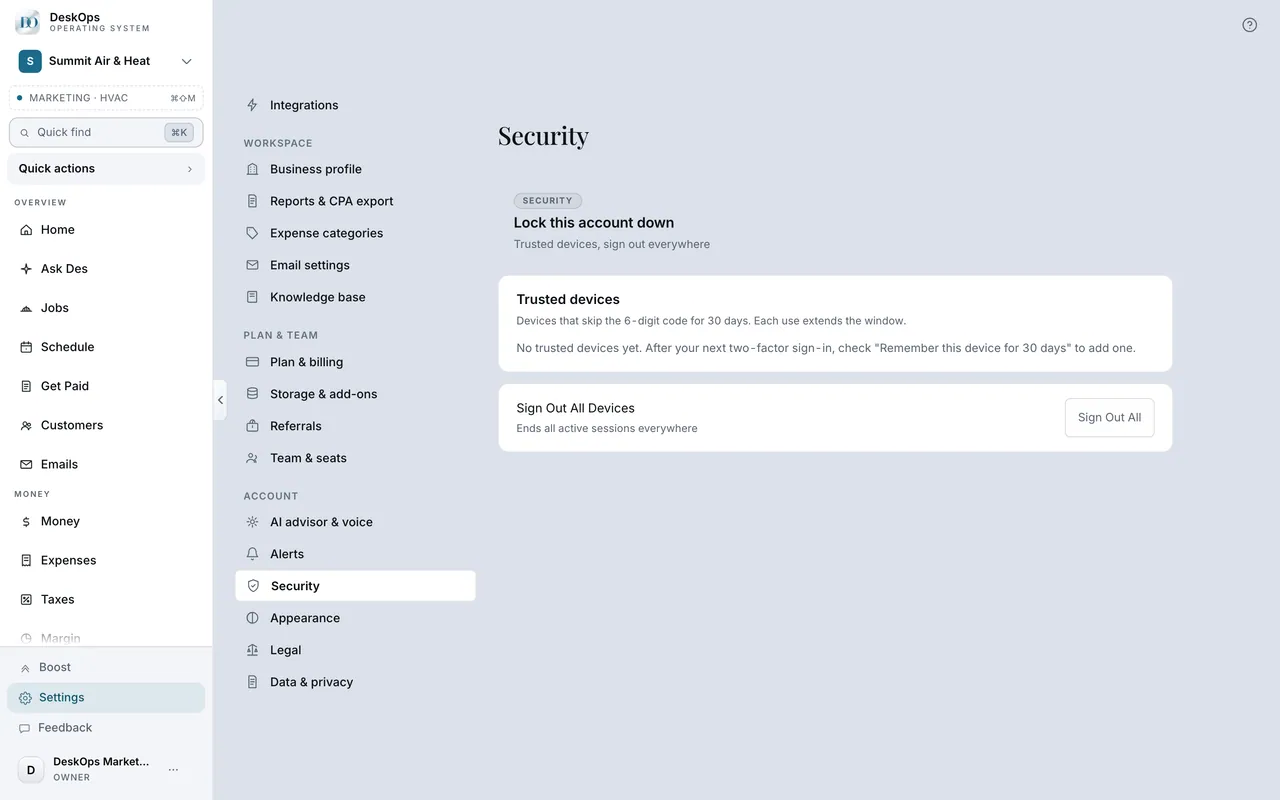 Example screen
Start here · On a computer
- 1Settings
- 2Security
On your phone: Settings → Security → Trusted devices.
Want to look at your own?