
Find any pageIn Your first day
In Your first day
Where the menu is
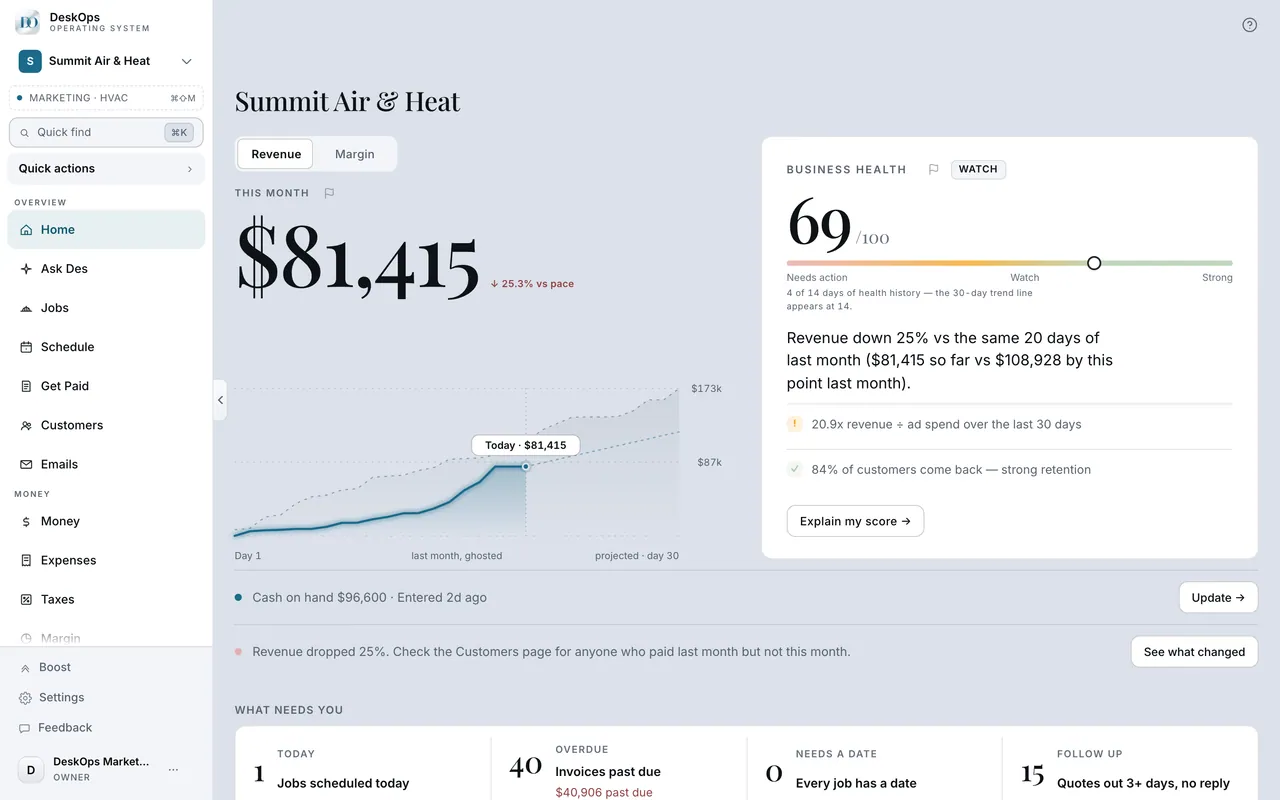
On a computer, every page is in the sidebar on the left. On a phone, the bottom bar holds the pages you use most and Menu holds the rest.
 Example screen
Where it is · On a computer
The left sidebar lists every page, grouped into Overview, Money, Grow, Planning and Account, with Boost and Settings pinned at the bottom. Press Cmd-K (Ctrl-K on Windows) anywhere to open the command palette and jump straight to a page.
On your phone: The bottom bar holds Home, Get Paid, Work, Ask Des and Menu for an owner; + New at the top of the screen adds something. Every other page is behind the Menu tab, which opens the full list in groups with a search box — type what you want ("EIN", "invite", "storage") and it takes you there.
Worth knowingCmd-K (Ctrl-K) opens Quick find on a computer — type a page, a customer or an invoice number.
In Your first day
What the pages are
The sidebar is grouped: Overview for the daily pages, Money for the books, then Grow, Planning and Account. Home, Get Paid, Customers and Schedule run most weeks.
Where it is · On a computer
Sidebar, top to bottom — Overview: Home, Ask Des, Jobs, Schedule, Get Paid, Customers, Emails. Money: Money, Expenses, Taxes, Margin. Grow: Goals, Team, Ads. Planning: Foresight, Wealth. Account: The Record, Proof. Pinned at the bottom: Boost, Settings.
On your phone: The same list in the Menu tab, plus Businesses (only when you own more than one business) and Discover.
In Your first day
Which pages only you can open
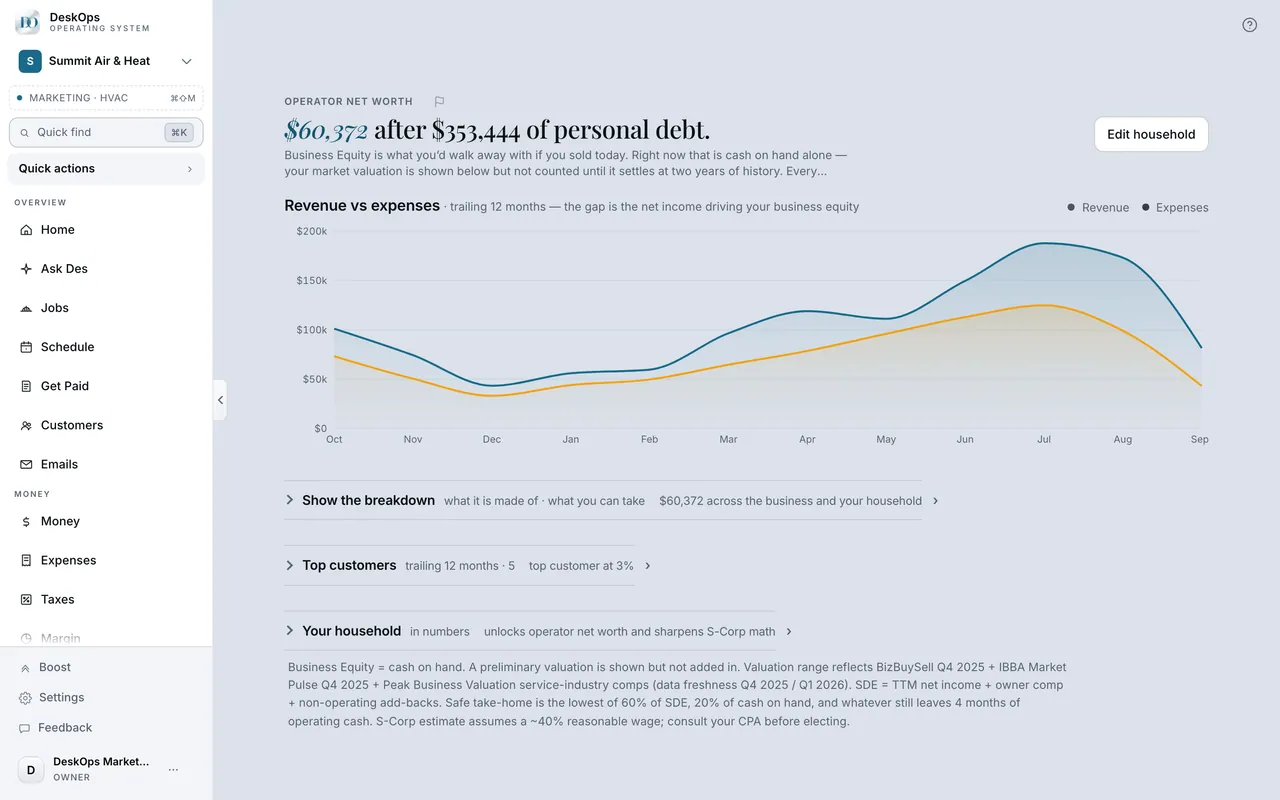
Wealth, Taxes, Foresight, Settings, Boost and pricing are owner-only. A team member you invite never sees them, with nothing to set up.
 Example screen
Where it is · On a computer
Wealth, Foresight, Taxes, Portfolio, Boost, Messaging, Settings, Jobs and Jobs & Ops are owner-only. A team member does not see them in the sidebar and cannot reach them by typing the URL.
On your phone: Same list — those rows are simply absent from the Menu tab for a team seat.
In Your first day
Find a setting by what it is about
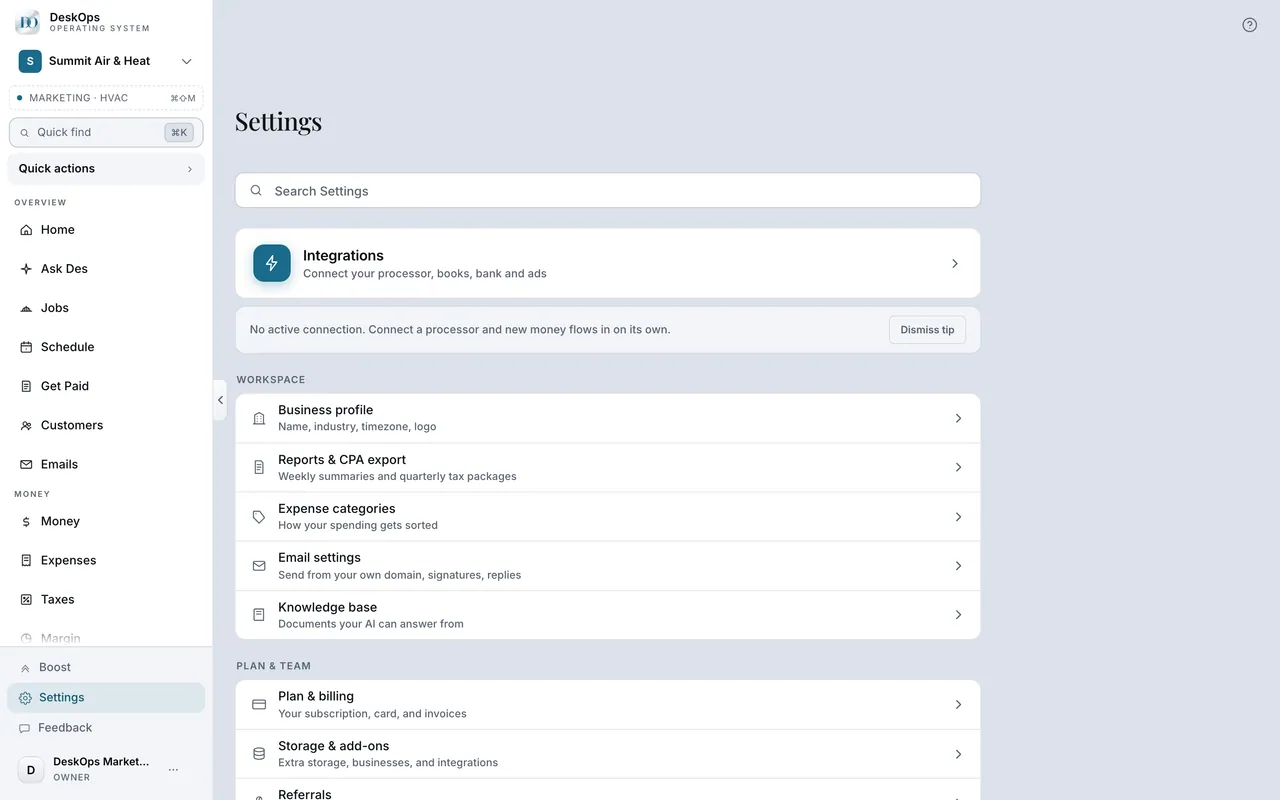
Settings is three groups — Workspace for the business, Plan & team for money and people, Account for you. Guess the group, not the name.
 Example screen
Where it is · On a computer
Settings, then read down the three groups — Workspace, Plan & team, Account.
On your phone: Settings — there is a search box at the top of the row list.
Want to look at your own?